
Printers
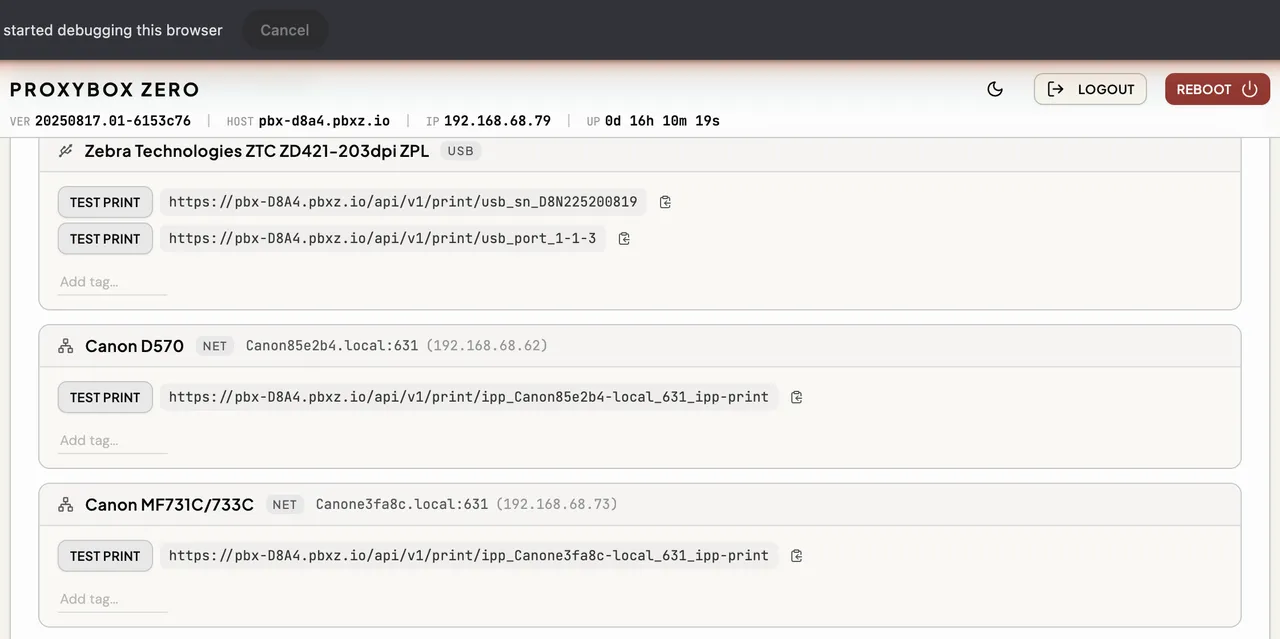
The Printers module is where you see everything ProxyBox has found on your network and USB ports. Network scanning is on by default, so when you first boot your device, it automatically scans for printers — network printers advertising via mDNS/Bonjour and anything plugged in via USB show up here without any configuration.
- Scan for Printers — refreshes the list of available printers. When network scanning is on, it searches the network and checks USB connections. When network scanning is off, it refreshes USB-connected printers but does not search the network.
- Add Network Printer — manually add a printer by IP address and port. This is for printers that don’t advertise themselves (common with raw TCP printers like Zebra label printers on port 9100). Manually added printers persist across reboots.
- Reset Printers — removes every manually added printer and every tag from the device. See Resetting Printers.
When ProxyBox Looks for Printers
Section titled “When ProxyBox Looks for Printers”ProxyBox scans when something has changed, not on a timer:
- At startup, a few seconds after the device boots.
- When you plug a USB printer in or unplug it. The printer appears in the list, or leaves it, within a few seconds. You do not need to press Scan for Printers.
- When you press Scan for Printers. Use this after a network printer comes online or changes address.
- When you change the Network Scanning setting.
A scan never interrupts a print job. If a USB printer is printing when a scan starts, ProxyBox waits until the job finishes before it rechecks the USB ports, so a print in progress is never cancelled by discovery.
Network Scanning
Section titled “Network Scanning”Use Disable Network Scanning when you do not want ProxyBox to find printers advertised on your local network — for example, when you use only USB printers or add every network printer manually. When scanning is off, the button changes to Enable Network Scanning.
Selecting either button opens a confirmation dialog:
- Disabling warns: “This turns off network scanning. A rescan runs immediately on apply, and discovered network printers will be removed from the list.”
- Enabling explains: “This turns on network scanning. A rescan runs immediately on apply.”
Apply changes the setting and runs the rescan before the dialog closes. Cancel leaves the current setting unchanged. When you disable network scanning, the rescan removes printers found through network scanning. Network printers added with Add Network Printer and printers connected by USB stay in the list.
Resetting Printers
Section titled “Resetting Printers”Use Reset Printers to start over with printer configuration — for example, when a device moves to a different site or you want to clear out old manual entries in one step.
Selecting it opens a confirmation dialog. Reset removes every printer added with Add Network Printer, along with its print queue, and removes every tag from the device. Cancel changes nothing.
Printers found by scanning — network printers advertising on your LAN and printers connected by USB — stay in the list, because ProxyBox finds them again on the next scan anyway. Your password, API keys, and all other settings are not affected. Tags are removed even when they point at a printer that stays listed, so re-create any tags you still need afterwards (see Tags).
Printer Details
Section titled “Printer Details”Each discovered or added printer shows the following:
| Field | Description |
|---|---|
| Model Name | The name advertised by the printer, or Unknown if unavailable. |
| IP Address | Hostname or IP. Auto-discovered printers show <host>.local:<port>, manually added show <ip>:<port>. |
| Printer Path | The API path used to send print jobs to this printer. Copy this into your application’s print target. |
| Tags | Labels you assign to the printer for tag-based routing. See Tags for details. |
| Test Print | Sends a sample print job to verify the printer works. |
| Reset Printer | (ZPL printers only) Clears the printer’s buffer and cancels pending jobs. See Resetting a Stuck Printer in the Zebra guide. |
Printer-Specific Behavior
Section titled “Printer-Specific Behavior”Some printer families come with extra behavior or format requirements — Zebra printers get a pre-flight health check before every network print job, Brother label printers require the PDF page size to match the loaded tape, and office printers accept the full set of print options. See the Printer Guides for details by manufacturer.
ProxyBox Docs v1.0.28